How to Open a BLF File Without CANoe
A BLF file is a Vector CAN log. Four ways to open and decode one without CANoe: in your browser, as MAT or CSV, with Python, or by reading the raw frames first.
A .blf file is the log that Vector CANoe, CANalyzer and Vector loggers write. If a colleague, a supplier or a test bench sends you one and you do not have a Vector licence, you can still read it. This guide shows four ways, from the fastest to the most flexible, and what you need for each.
What is inside a BLF file
What a BLF file stores
BLF stands for Binary Logging Format. It stores a time-ordered stream of bus events: classic CAN and CAN FD frames, the channel each frame was seen on, a timestamp, the arbitration ID, the data length and the data bytes. It is compressed, so you cannot read it in a text editor.
What it does not store
A BLF file does not contain signal names such as VehicleSpeed or BrakePressure. Those come from a DBC file, which describes how the bytes of each message are split into signals, with scaling, offsets and units. Without a DBC you can read raw frames; with one you can read physical values. To see what a DBC defines before you decode anything, open it in the DBC viewer.
Four ways to open a BLF file
Pick the route by what you want to do next: look at the data, hand it to another tool, automate it, or just check what was recorded.
Option 1: Open it in your browser
This is the quickest way if you just want to look at the data. The BLF viewer page lists exactly which BLF objects it reads.
- Open the workbench and choose Open your own log, or drop your
.blffile onto the page. - Add your
.dbcfile or files and link each CAN channel to the DBC that describes it. If one channel has several DBCs, each frame is decoded with the first one that defines its ID. - Press Save & Parse. Signals appear in the Graph view; the Frames view shows every raw frame; the DBC view shows the definitions.
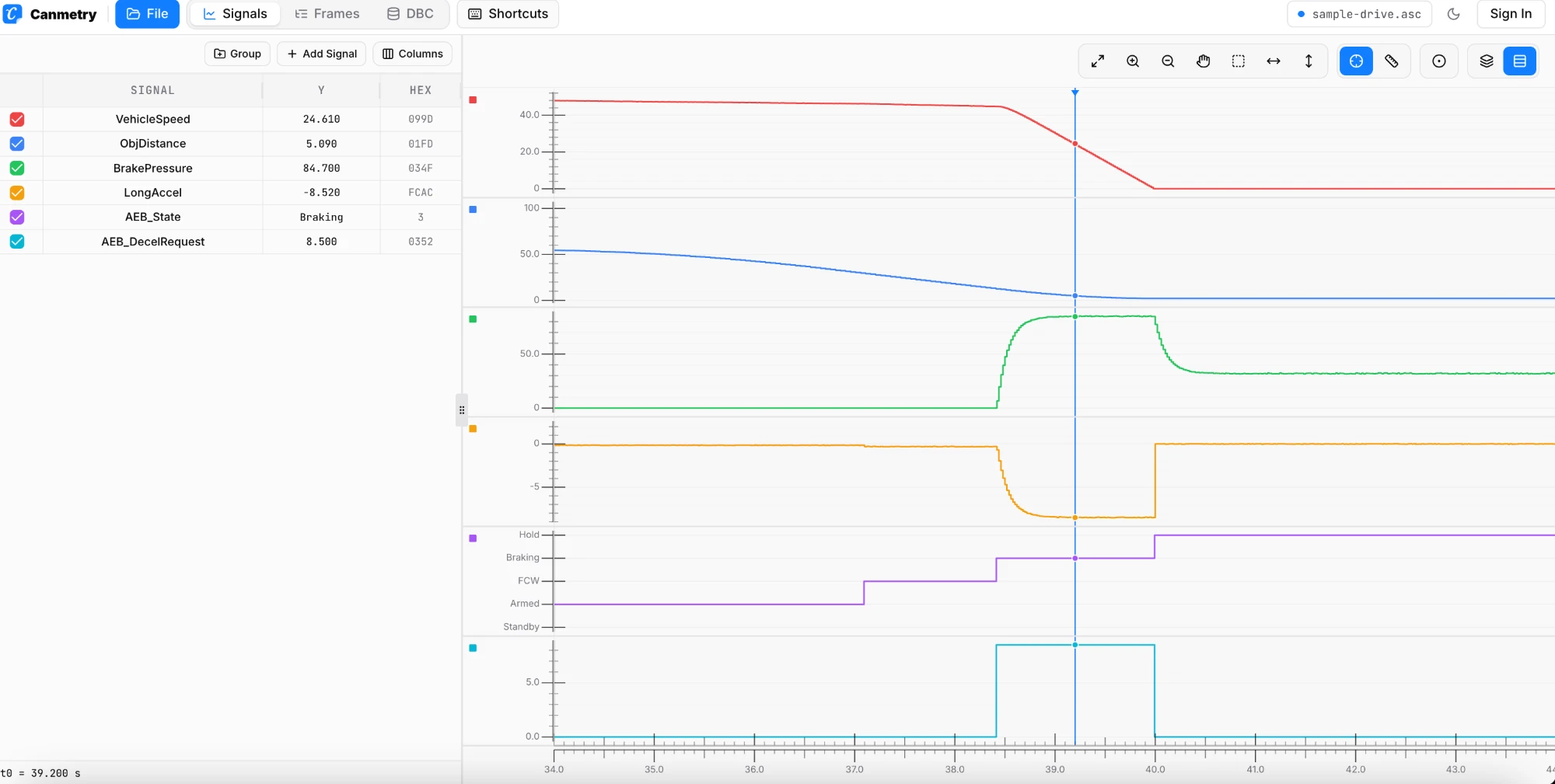
Everything runs inside your browser tab. The log and the DBC are decoded locally and are not uploaded. It works on Windows, macOS and Linux, and a log can be up to 150 MiB.
Option 2: Convert it to MAT or CSV
If you want to analyse the data in MATLAB, Python or a spreadsheet, convert it instead of viewing it.
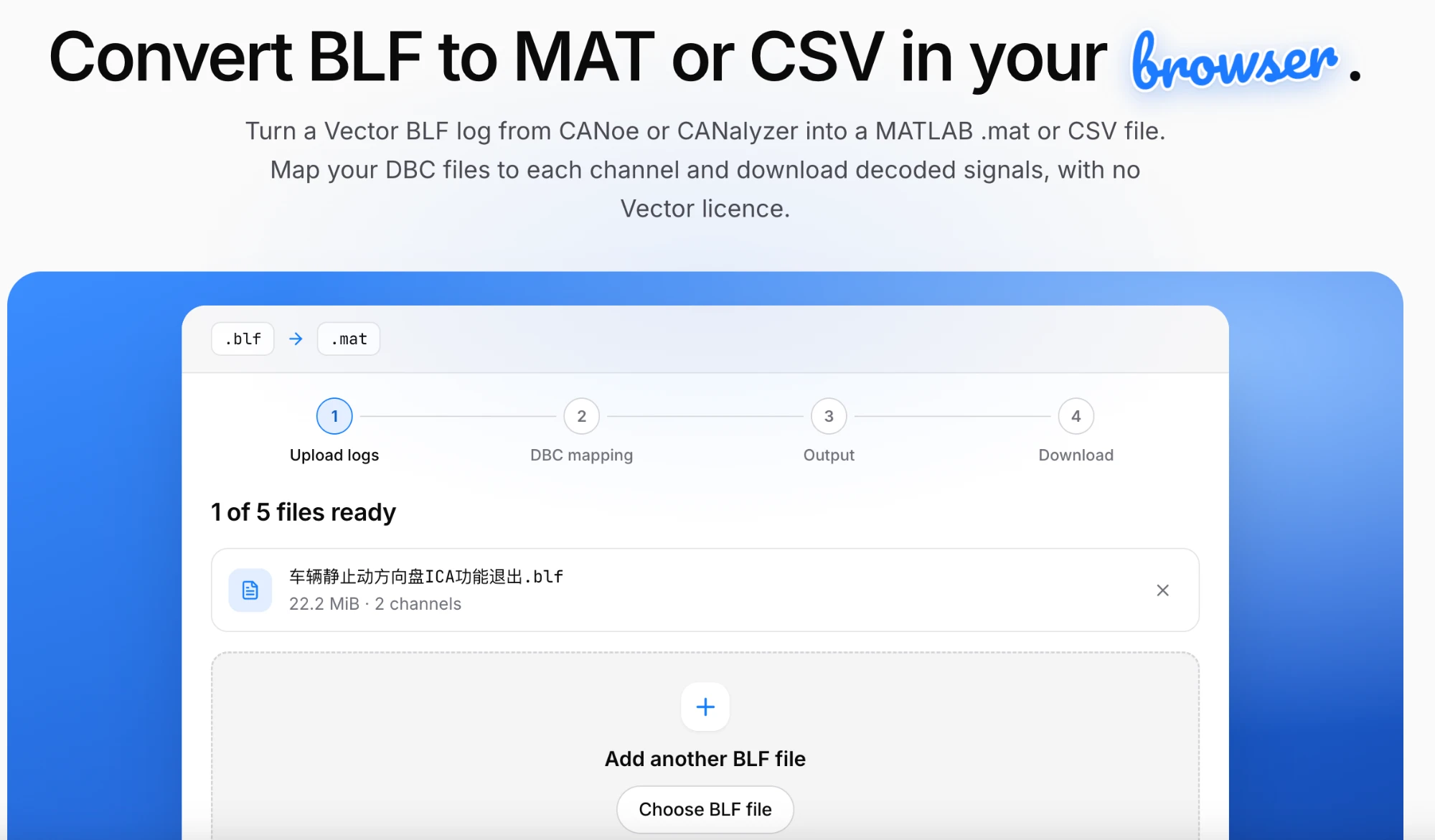
The BLF to MAT and CSV converter takes up to five BLF files, decodes them with your DBC files and gives you one .mat or .csv file per log. A .mat file holds one struct per signal with time, value, unit, message and channel. A .csv file has one row per sample. Only signals that your DBC decodes are exported.
Option 3: Read it with Python
If you prefer scripts, the open-source python-can and cantools libraries read BLF files and apply a DBC:
import can
import cantools

db = cantools.database.load_file("vehicle.dbc")

with can.BLFReader("drive.blf") as log:
    for msg in log:
        try:
            signals = db.decode_message(msg.arbitration_id, msg.data)
        except (KeyError, ValueError):
            continue  # ID not in the DBC, or data does not fit
        print(msg.timestamp, msg.channel, signals)
This is the most flexible route, and the best one for large batches, but you have to write the filtering, channel handling and plotting yourself.
Option 4: Look at the raw frames first
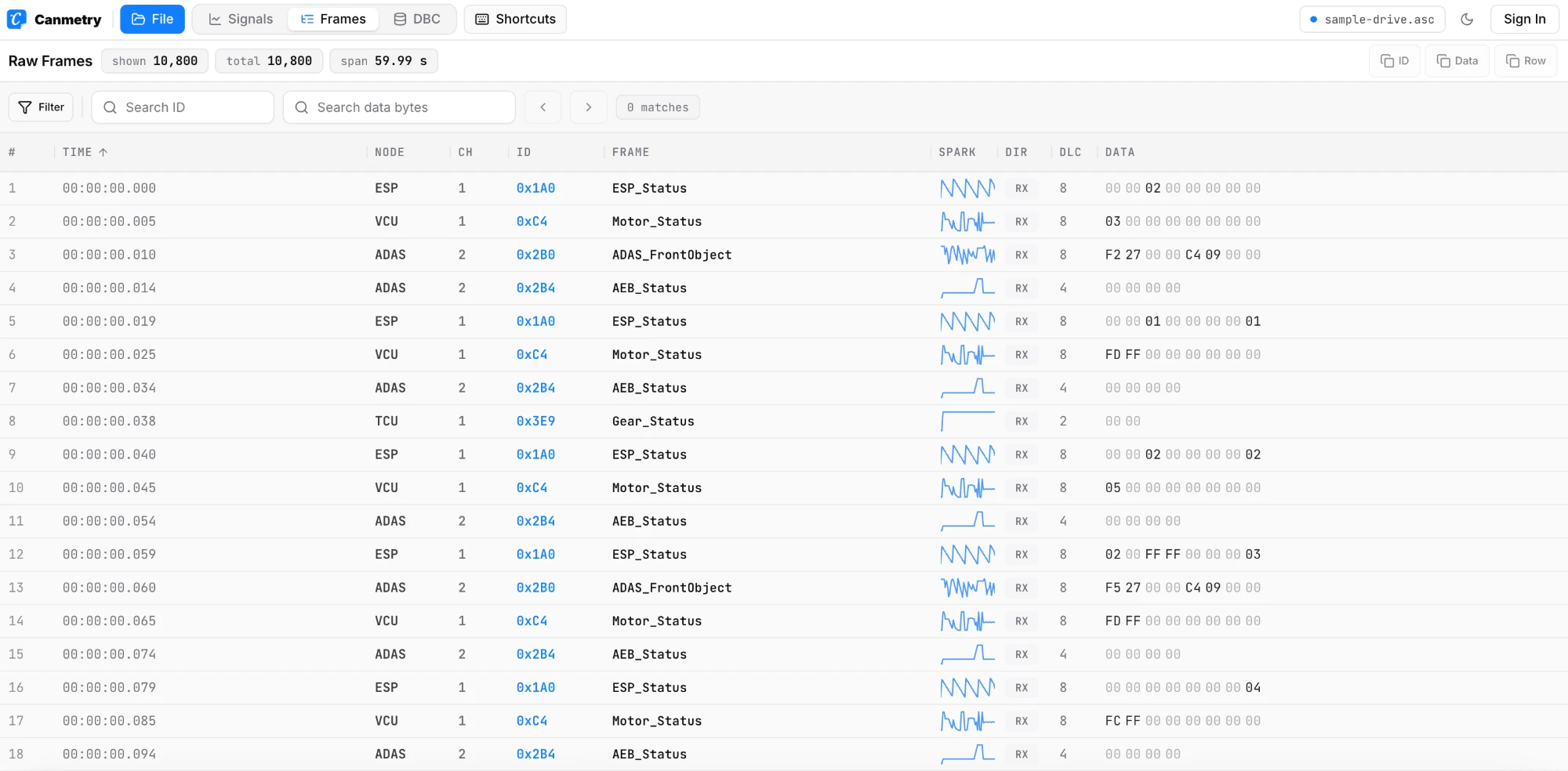
Sometimes you do not have the DBC yet. Open the log in the Frames view and you still get the timestamp, channel, ID, DLC and data bytes of every frame. You can filter by ID or channel, search for a data pattern, and see which bytes change over time. That is often enough to check that a message is present, how often it is sent, or whether a value is moving at all.
Do you need a DBC file?
When you can skip it
To check that a log opens, to count frames or to look for a particular ID, you do not need a DBC.
When you need it
Only to turn bytes into named signals. To plot speed, torque or a fault flag you do need one.
Getting the right DBC
Ask the team that owns the network for the DBC that matches the software release the log was recorded with, because IDs and scaling can change between releases.
If something does not work
No signals appear
Check the channel mapping: the DBC must be linked to the channel the messages were recorded on.
Values look wrong
The DBC probably does not match the log. Try the DBC from the matching software release.
Only some messages decode
Messages that are not in your DBC are not decoded; they still show up as raw frames.
The file is large
The browser tools accept logs up to 150 MiB. For bigger recordings, split the log or use the Python route.
The file will not open at all
Make sure it is a real .blf file and not an ASCII .asc trace with the wrong extension.
Summary
You do not need CANoe to read a BLF file. For a quick look, open it in your browser. For analysis in MATLAB or Excel, use the BLF to MAT and CSV converter. For automation, use Python. In every case the DBC is what turns bytes into signals. If you are choosing a longer-term tool, see the scope and limits of a CANoe alternative for offline analysis.
Open a log. See the signal.
Open a BLF, MF4 or ASC file in your browser. Nothing is uploaded.
Open workbench