CANoe Alternative for Offline CAN Log Analysis
Need a CANoe alternative for recorded BLF, MF4 or ASC logs? See what offline analysis covers: DBC decoding, CAN FD, local processing, export and file limits.
If your job is to open recorded CAN or CAN FD logs, decode them with a DBC, inspect frames and plot signals, Canmetry covers that offline analysis workflow without requiring a CANoe installation just to read a file. If you need to connect bus hardware, transmit frames, simulate ECUs, run automated tests or build a HIL bench, continue evaluating CANoe. Vector describes CANoe as a tool for analysis, simulation, stimulation, testing and diagnostics; the current Canmetry browser workbench focuses on recorded logs.
This guide addresses three common situations: a supplier sends you a BLF but you have no Vector licence; you need to inspect a CAN FD recording on a Mac; or you want DBC-decoded signals in MATLAB or Python. Compare the tasks below, then check the fit with your own files.
Choose by the task you actually have
| Task | CANoe | Canmetry browser workbench |
|---|---|---|
| Open recorded CAN / CAN FD logs | Analysis workflows available | Opens BLF, MF4, ASC, CSV and candump .log |
| Decode records with a DBC | Bus analysis workflows available | Map DBC files to log channels; inspect named signals and physical values |
| Inspect frames and signal plots | Graphical and textual analysis views | Trace filtering, signal plots and a DBC view |
| Export data for further analysis | Depends on workflow and configuration | Export signal CSV from the workbench; separate BLF / MF4 to MAT and CSV tools |
| Capture live traffic or transmit via an interface | Part of CANoe measurement and test workflows | Current browser workflow starts from an existing file |
| ECU simulation, automated testing, SIL / HIL | Core CANoe application areas | Not provided by the current browser workbench |
“Alternative” here means an alternative for viewing and analysing recorded logs, not feature parity with every CANoe edition or configuration. CANoe capabilities vary by version and options; verify procurement and bench requirements against Vector's product information.
There is a third route if you are comfortable writing scripts: read a BLF with python-can's BLFReader and decode frames against a DBC with cantools. That gives you room for custom rules and batch processing, but you must build the channel handling, filtering, plots and export workflow yourself. The browser workbench is a quicker starting point for inspecting one recording; scripts suit repeatable batch work.
How do I inspect a BLF without a CANoe licence?
- Open the
.blfin the analysis workbench. The browser reads the file and detects its channels. This does not require CANoe or a DBC. - If you have DBC files, map them to the corresponding channels. Different channels can use different DBCs; if several DBCs on one channel define the same message ID, check which definition matched. Prefer a DBC from the recorded vehicle and software version.
- In Frames, filter by time, channel, hexadecimal ID or payload bytes. Confirm that the target frames exist before relying on decoded values.
- Select signals in Graph and compare them along the timeline. Export decoded signal CSV from the workbench for more calculations; use the separate converter if you need
.mat.
What if I have no DBC? You can still see timestamps, channels, IDs, frame type, DLC and payload bytes. That is enough to check whether an ID appears, on which channel, and whether its bytes change in a time window. A BLF alone cannot tell you a signal name such as VehicleSpeed, its scale or its unit.
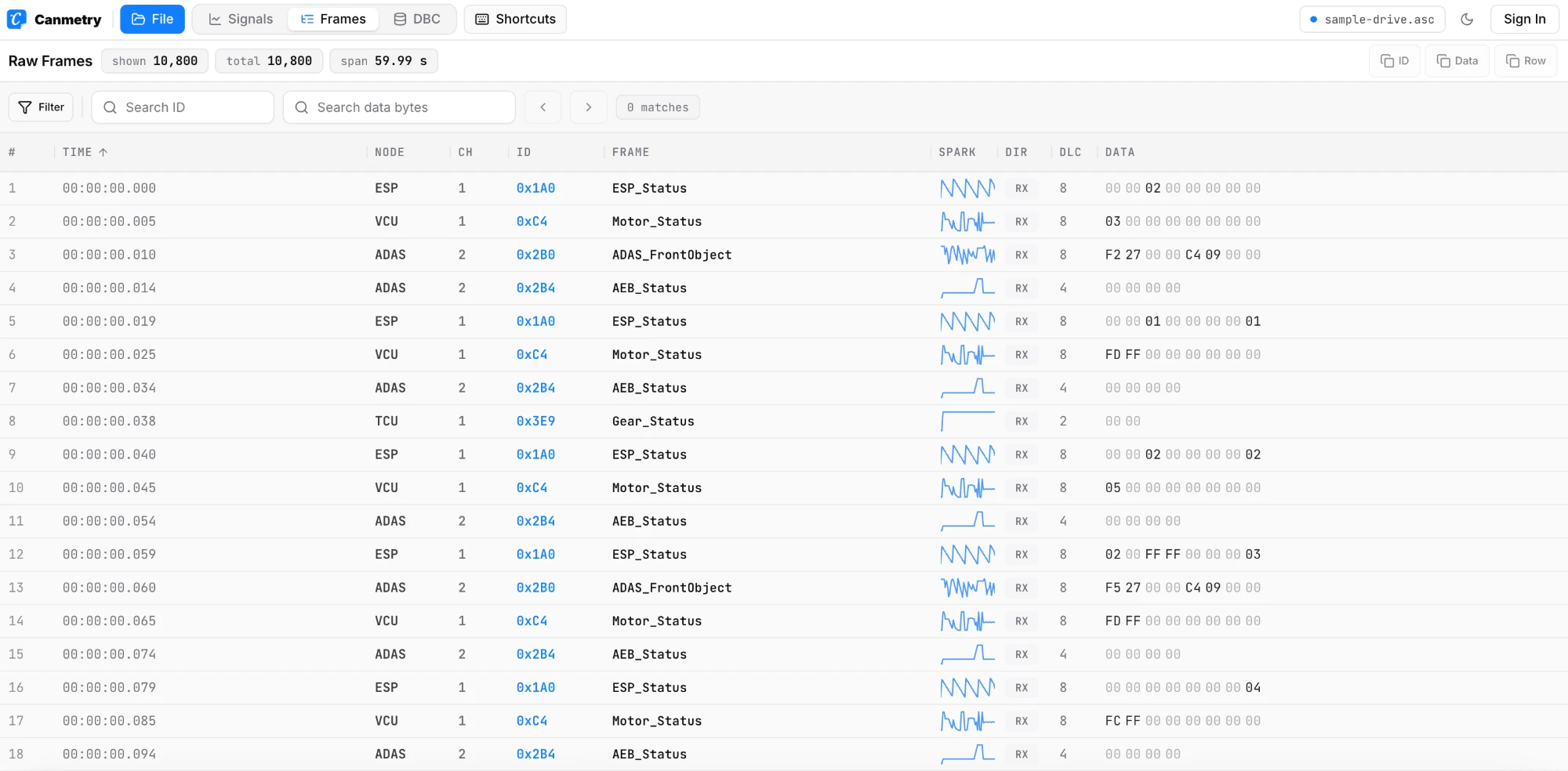
How does a DBC turn frames into a signal plot?
The built-in synthetic sample DBC defines ID 0x1A0 as ESP_Status. Its VehicleSpeed signal reads the first two bytes as an unsigned little-endian integer, with a factor of 0.01 and a unit of km/h. At the cursor in the screenshot, the raw value is 0x099D, or decimal 2461; applying the DBC factor gives 24.61 km/h. This is a value you can check against the bytes, rather than a speed inferred from the plot. To read any DBC on its own, with its formulas, value tables and nodes, use the DBC viewer.
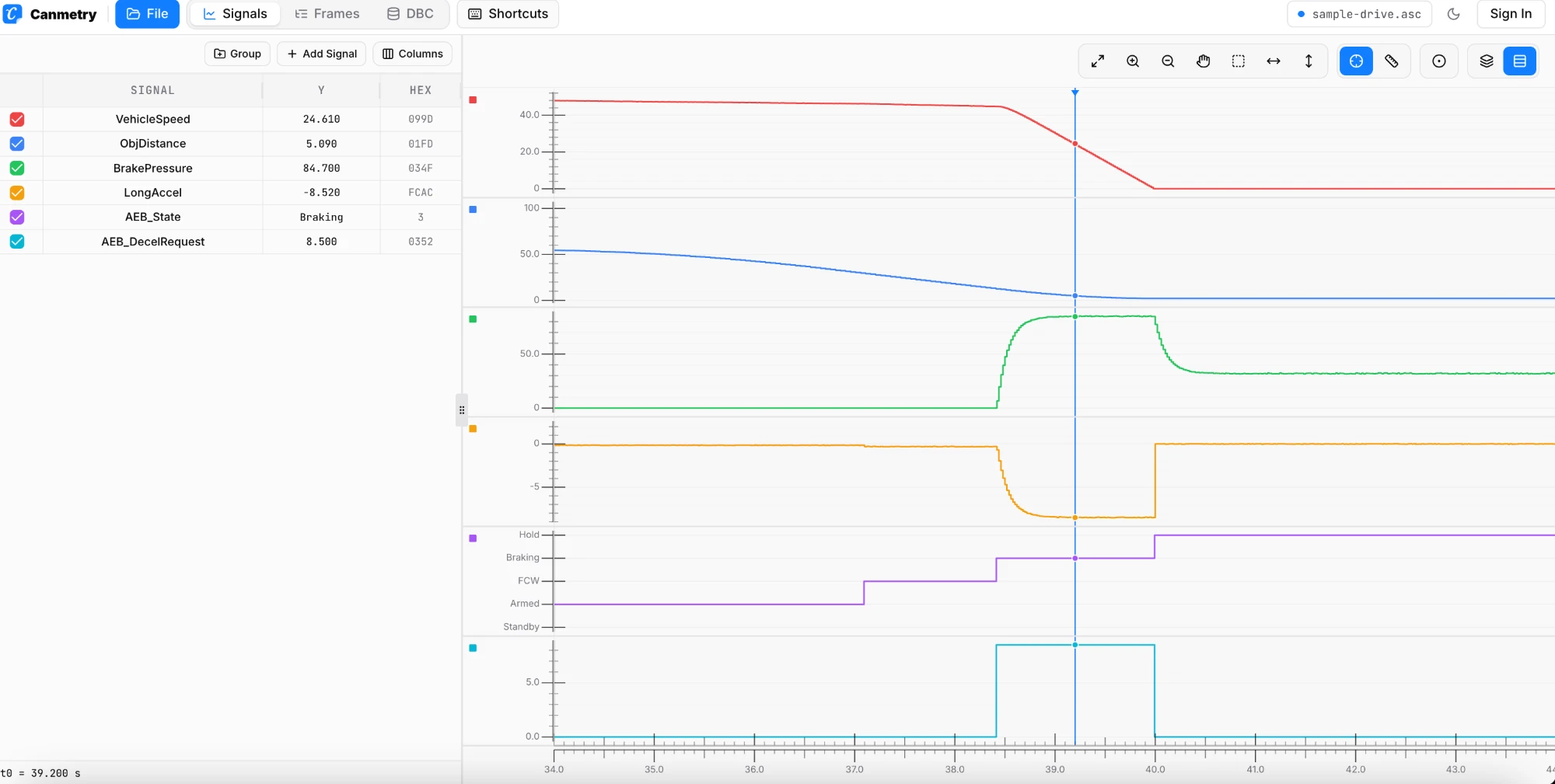
Signals share a time axis, so you can inspect the sequence of speed, brake pressure and AEB state changes. A plot represents the selected DBC's interpretation of the recording. If a value looks wrong, check the channel mapping, message ID and DBC version first. For more on what a BLF itself contains, read How to Open a BLF File Without CANoe.
Five questions to check before choosing
Can I plot several signals from a CAN FD log?
Yes. The workbench parses classic CAN and CAN FD records. With a matching DBC mapped, select several signals in Graph to compare them on a shared timeline. CAN FD frames still need matching DBC definitions. To inspect raw CAN FD frames, you can start without a DBC.
Can I open a CANoe-recorded BLF on a Mac or Linux machine?
Yes. A modern browser can open an existing BLF on macOS or Linux without installing CANoe there. The browser workbench also runs on Windows. This concerns reading recordings; it does not turn a browser into a Vector hardware interface or a CANoe test bench.
Are my log and DBC uploaded to a server?
Not when you merely open them in the local workbench. The browser parses the log and DBC in memory. A cloud project mainly stores analysis settings; uploading a log or DBC to the workspace file library after signing in is a separate action. If you use the site's AI assistant, consider what you type in chat and the limited analysis context it receives.
How do I convert BLF or MF4 to MAT or CSV?
On the BLF to MAT / CSV or MF4 to MAT / CSV page, choose logs, map DBCs to channels, select an output format and download a decoded result for each log. You can select up to five logs at once, each no larger than 150 MiB. If you only need signals in the current workbench, use its file menu to export CSV: it exports signals added to the workspace, or all available decoded signals if none are added. The CSV contains time, channel, message, signal, value and unit; one workbench CSV export is capped at two million rows. These are decoded results, not a lossless byte-for-byte conversion of the original BLF.
Can I process a multichannel log around 150 MB?
The limit uses binary units: 150 MiB per log (about 157 MB). Different channels can map to different DBCs. Near the limit, parsing speed and memory use depend on your device, so check with your own sample. Split a larger recording or use another processing workflow.
Which CANoe jobs should stay in CANoe?
Can you move an existing hardware setup and test scripts to this browser workbench? Do not assume so. This guide covers analysis of recorded data. The current Canmetry workflow does not provide live interface capture, frame transmission, CAPL execution, ECU simulation or SIL / HIL testing. Keep tools and configurations built for those tasks. Check CANoe editions and options against Vector's official information.
The decision in one sentence
For a supplier BLF, a quick CAN FD trace check on a Mac, or DBC-decoded data to take into MATLAB or Python, try the built-in synthetic sample, then verify the file format, DBC mapping and performance with your own recording. If the task extends to controlling a bus, simulating nodes or running tests, keep a CANoe workflow built for those jobs.
Open a log. See the signal.
Open a BLF, MF4 or ASC file in your browser. Nothing is uploaded.
Open workbench