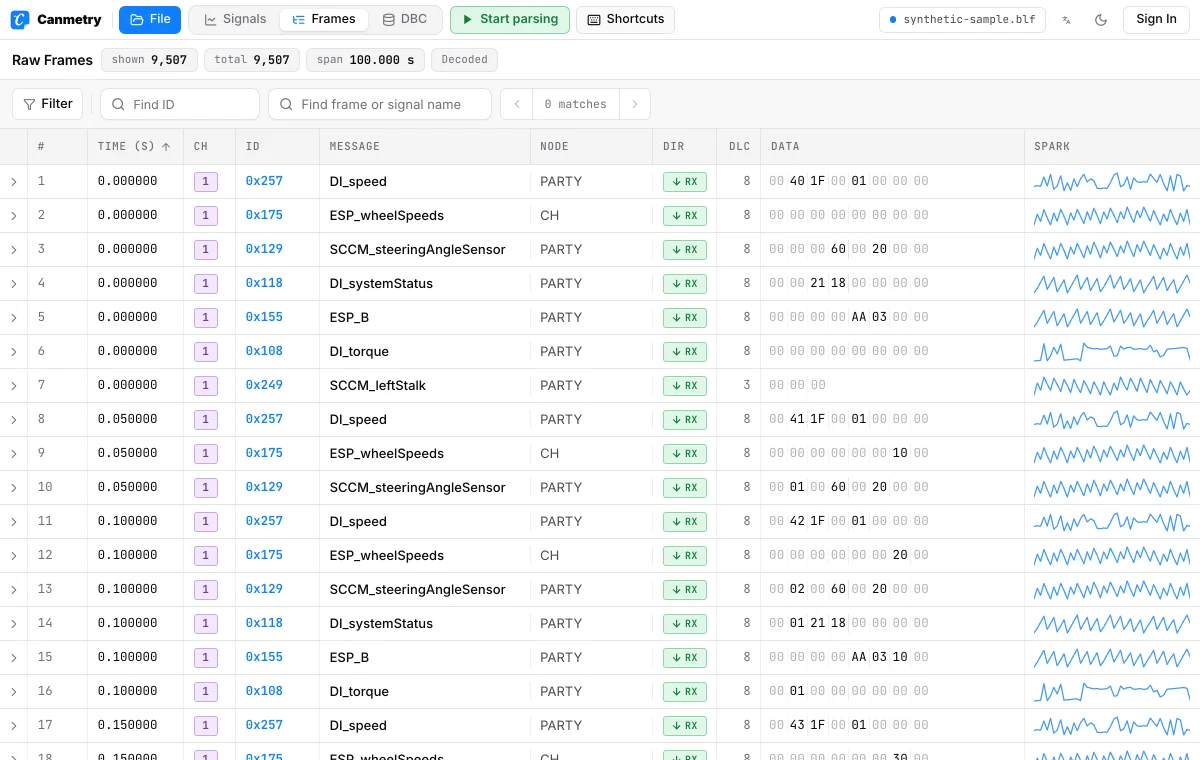
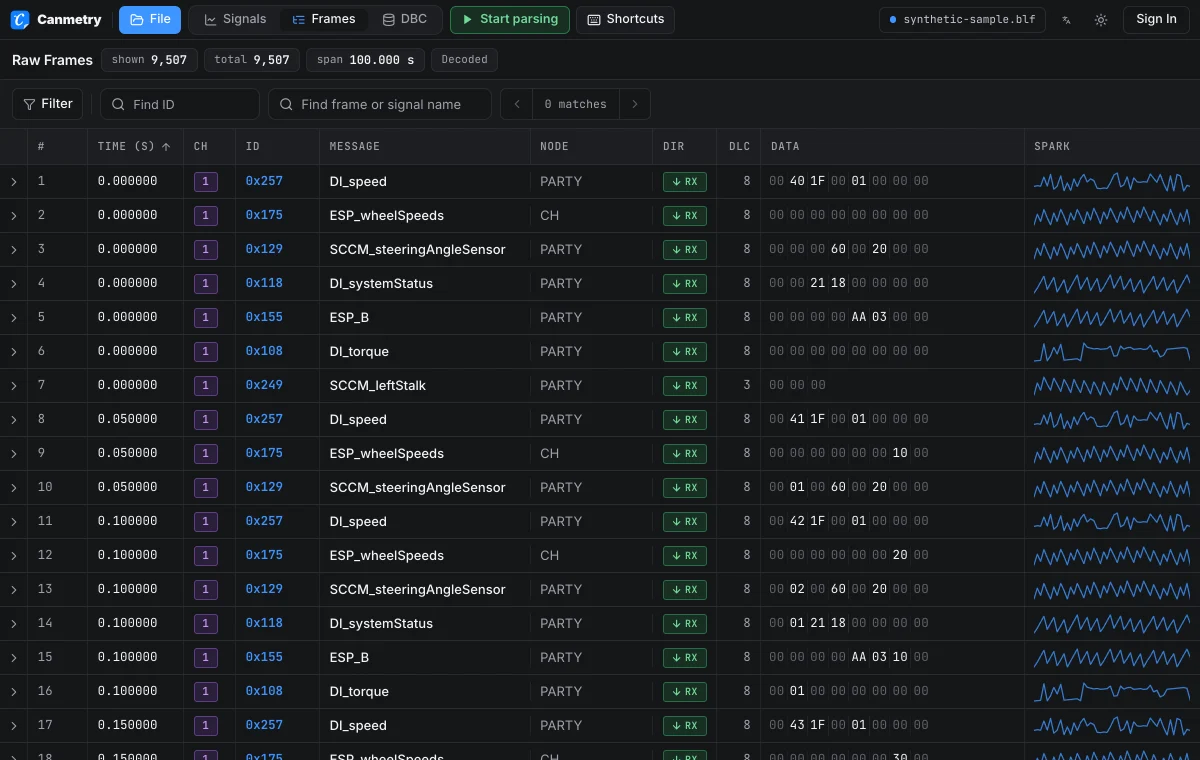
Frame trace: every CAN frame in time order
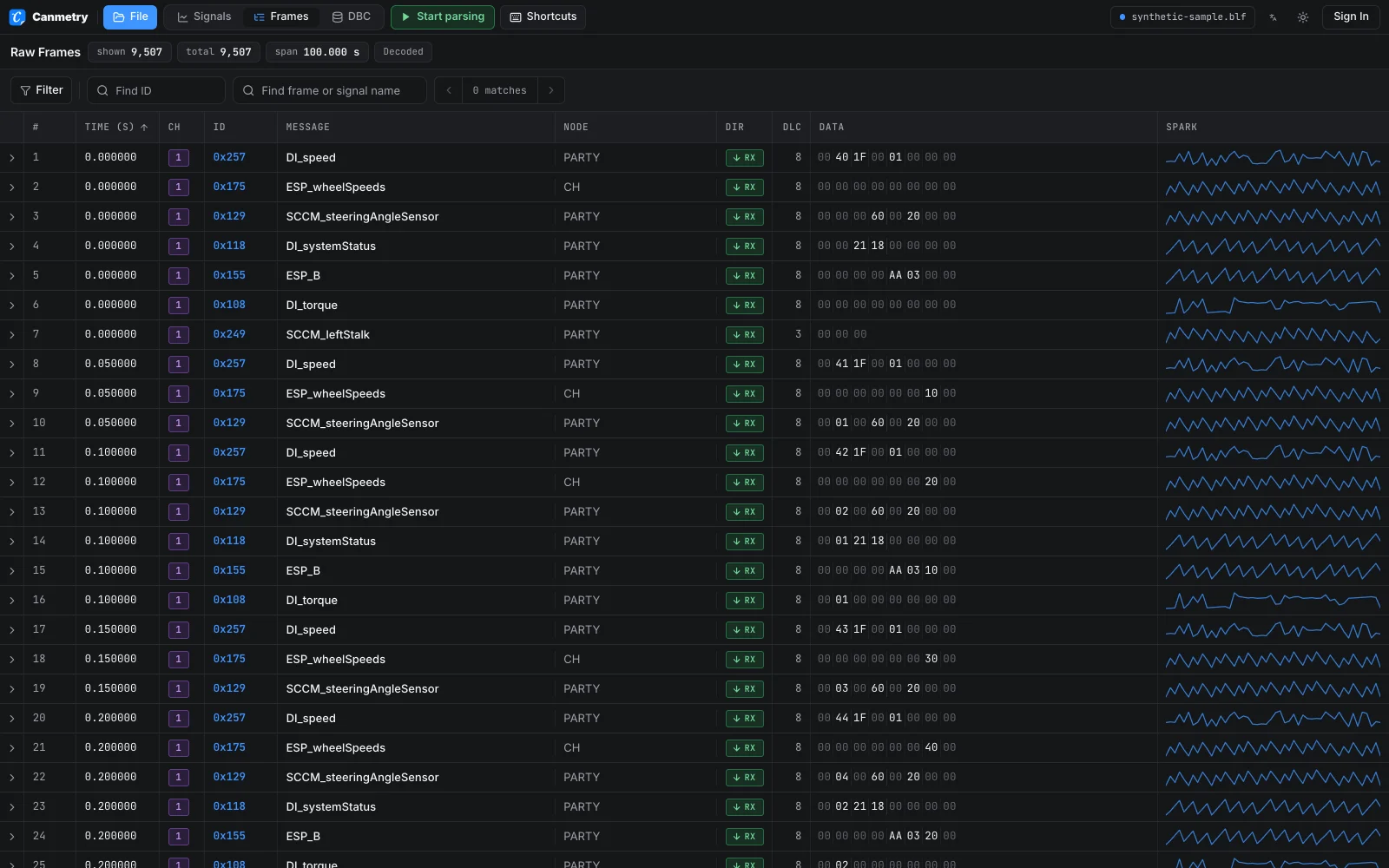
Each frame shows its time, channel, ID, DLC, direction (Rx or Tx) and data bytes. Channels are detected from the BLF file, and each channel keeps its own colour.
This BLF viewer lists every CAN and CAN FD frame in a .blf file and decodes signals with your DBC. Nothing is uploaded.
Drop a BLF file to view it
orAny Vector BLF with CAN or CAN FD frames. Link a DBC to each channel next, or skip it and look at the raw frames.
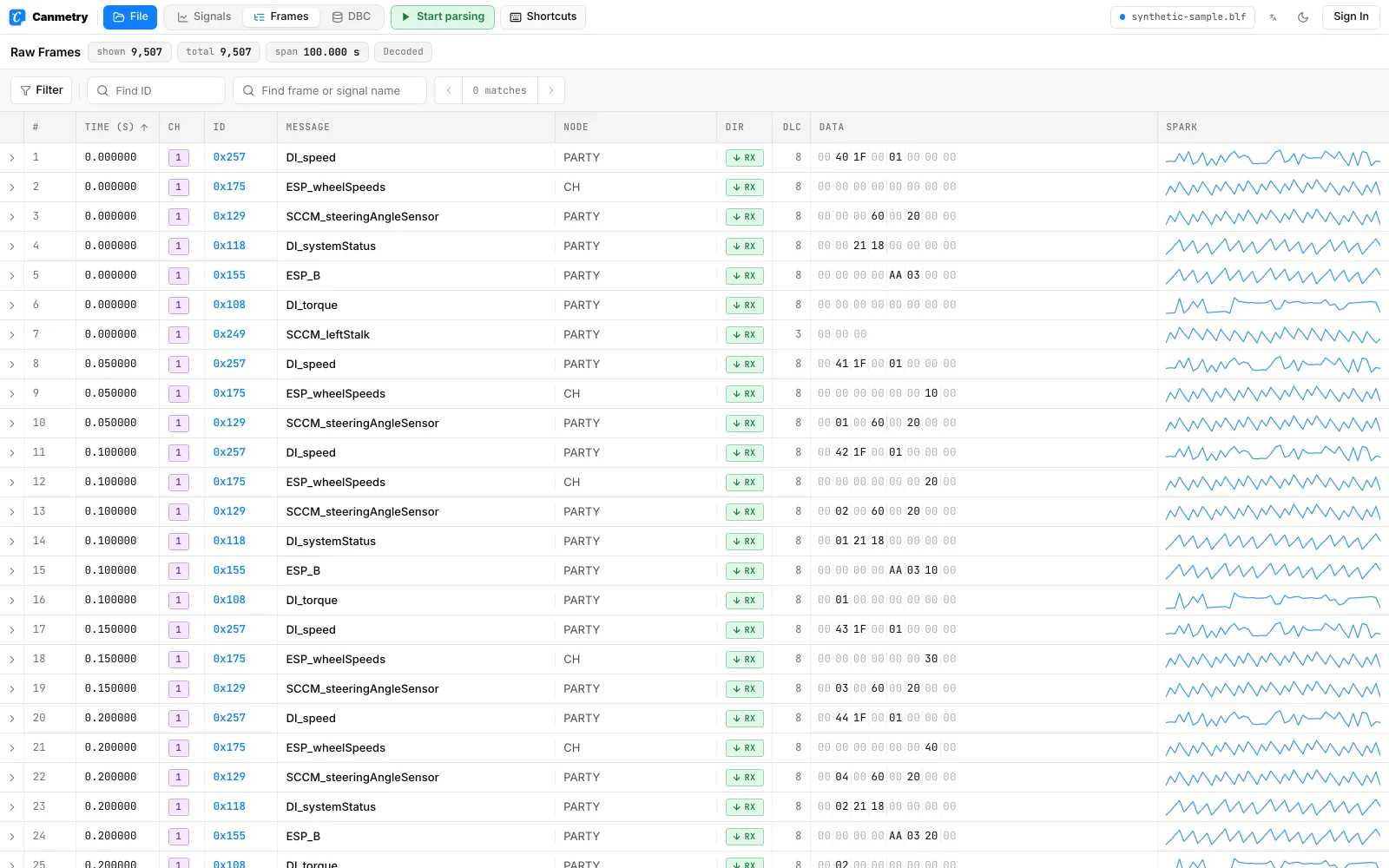
BLF is a compressed binary format, so a text editor cannot display it. The BLF viewer decompresses the log containers and lists the frames in time order, like a CAN trace.
Each frame shows its time, channel, ID, DLC, direction (Rx or Tx) and data bytes. Channels are detected from the BLF file, and each channel keeps its own colour.
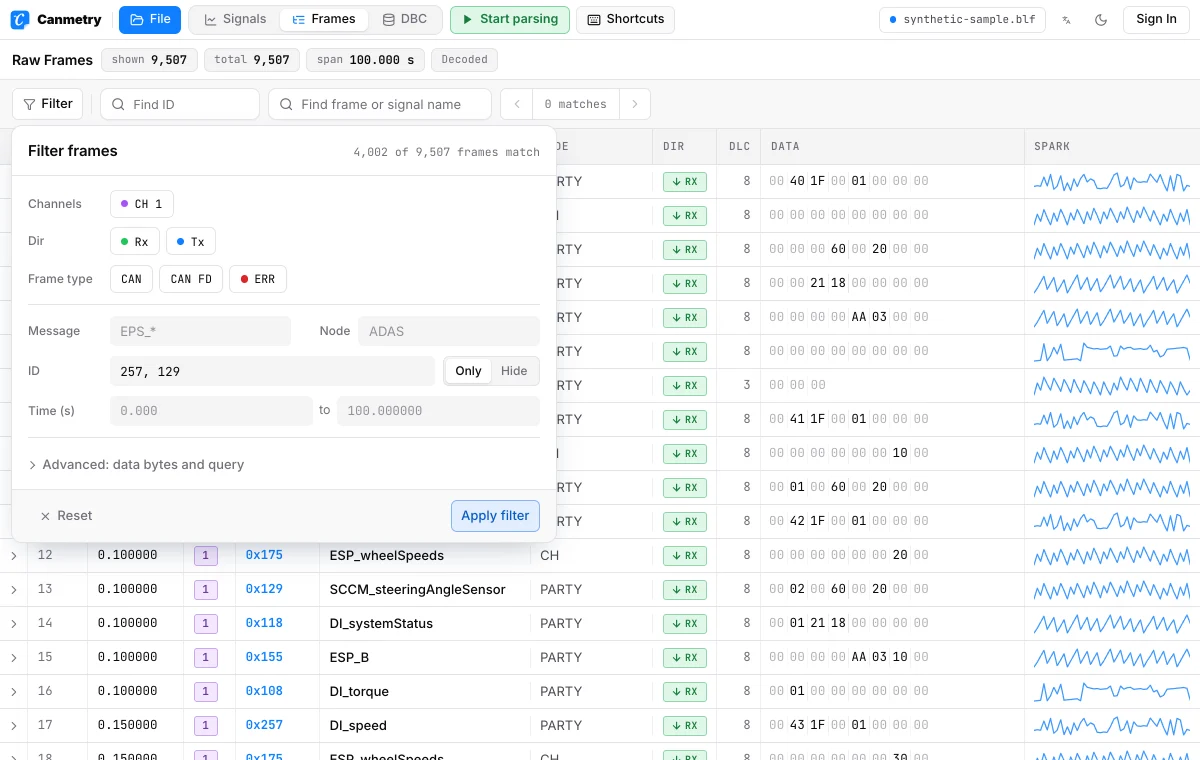
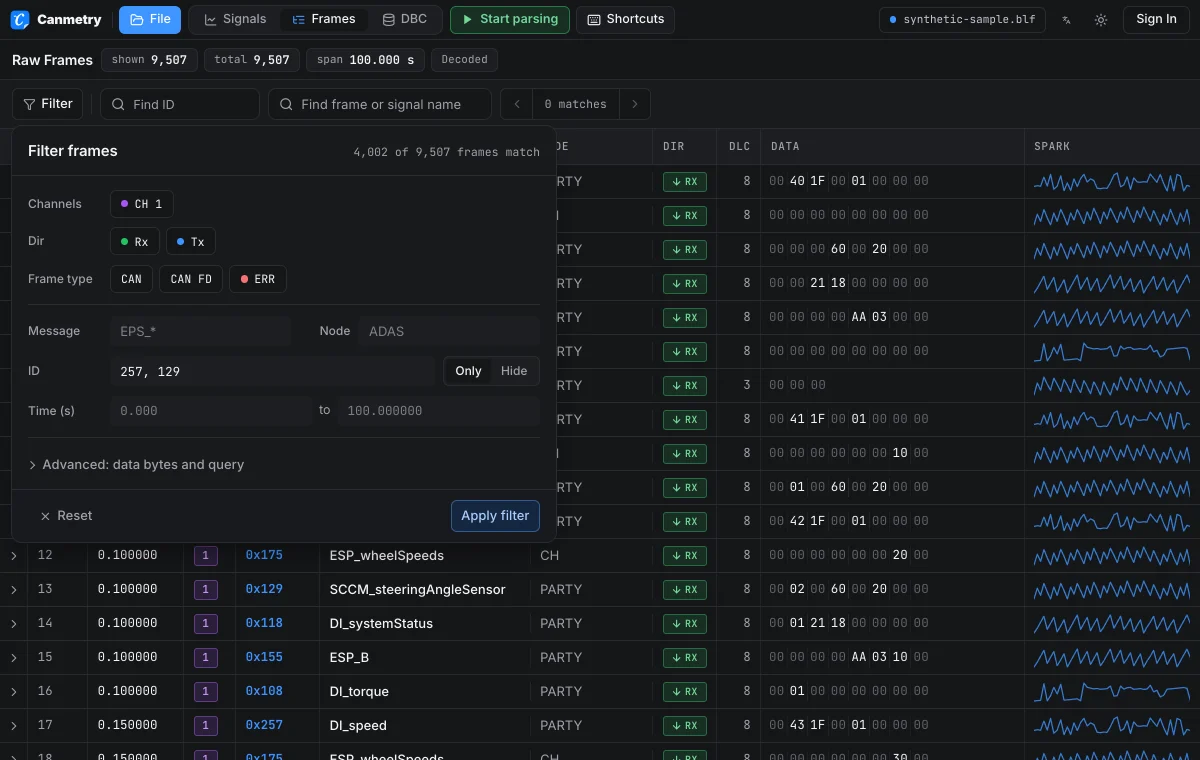
Filter by time range, ID or ID range, channel, frame type or a byte pattern with ?? wildcards, or type a query such as id:100-1FF ch:1 t:2..4.
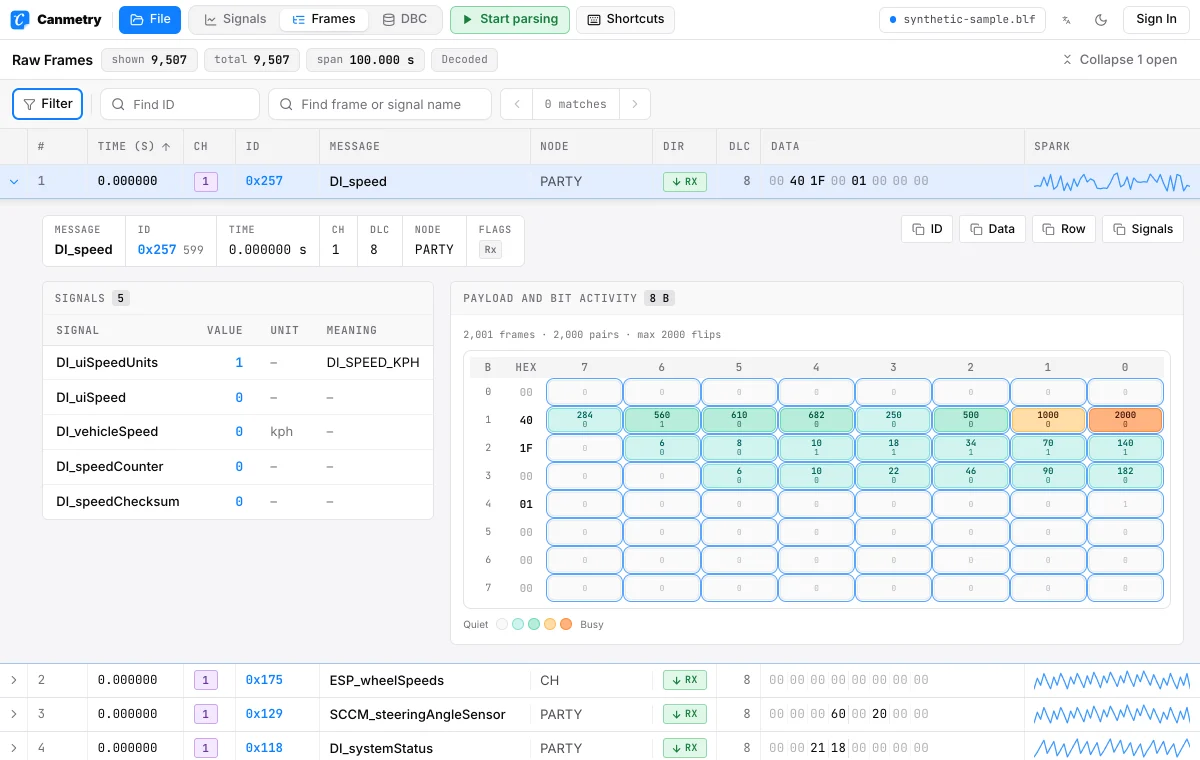
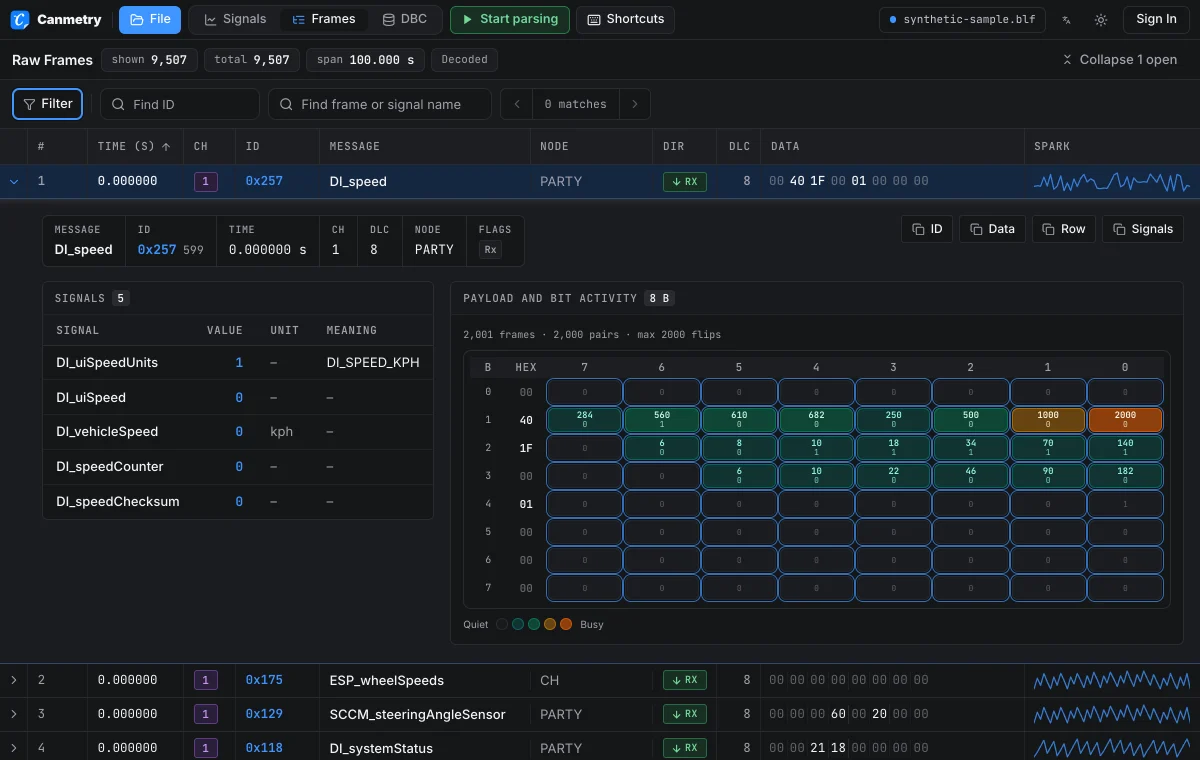
Expand a frame to see its flags (FD, BRS, ESI, error), its decoded signals and which bits change across the log. J1939 traffic gets a PGN column.
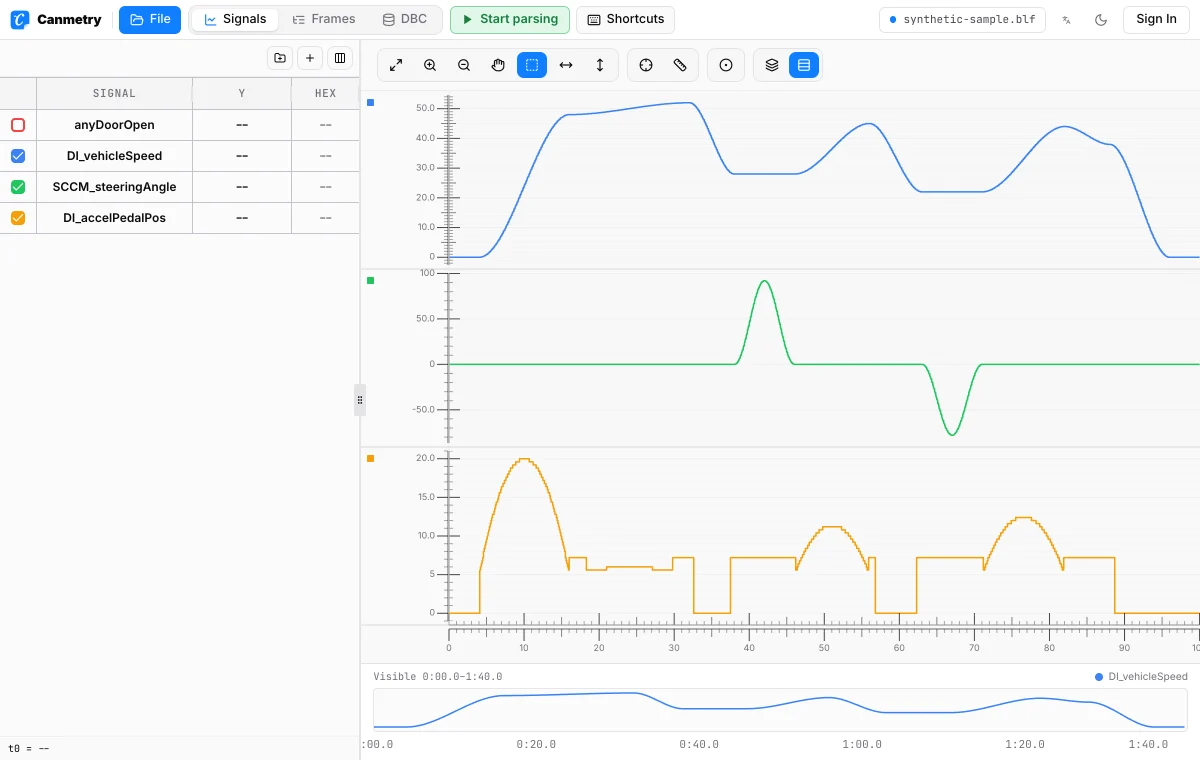
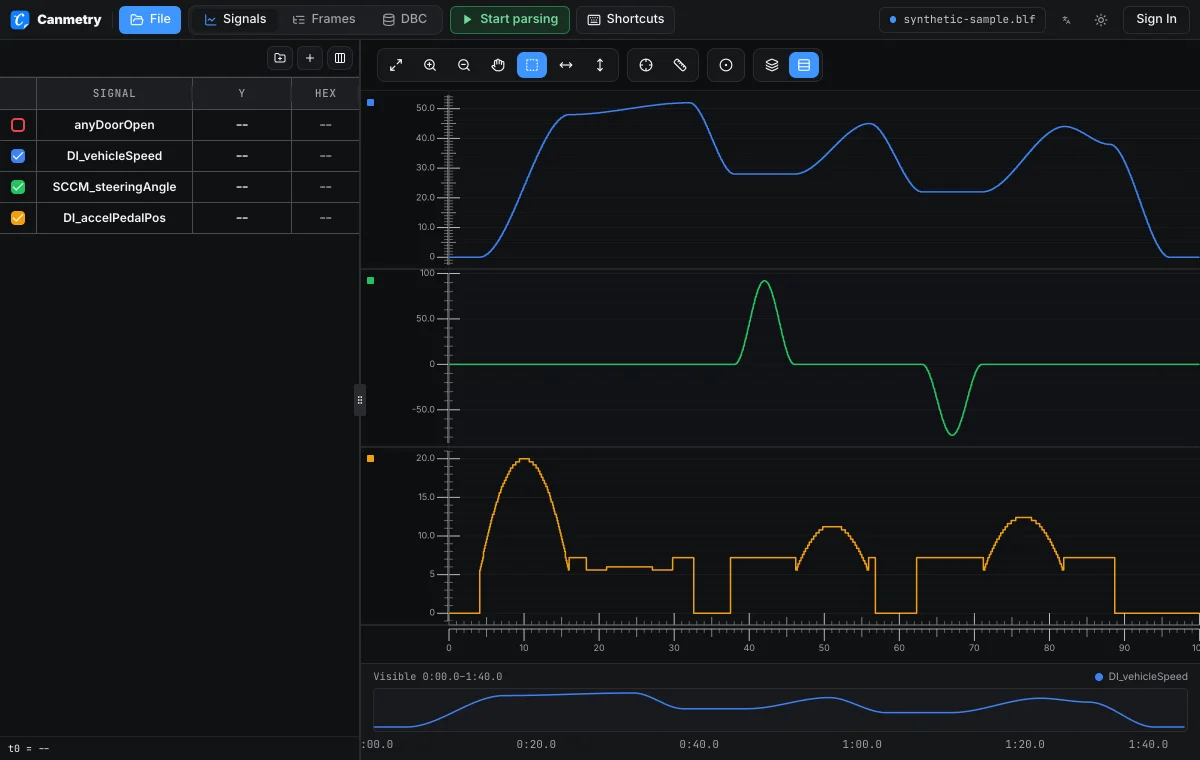
Link a DBC to each channel and plot any decoded signal over time, with two cursors to read values and the time between them.
Three steps in the BLF viewer. The file never leaves your browser.
Drop the .blf file on this page or choose Open a BLF file. The BLF viewer reads it locally and detects its CAN channels.
Add the DBC for each bus to decode signal names and physical values. Skip this step to view the raw frames only.
With a DBC the BLF opens on the signal plots; without one it opens on the frame trace. Filter frames, expand any frame, or measure with two cursors.
The BLF viewer reads CAN, CAN FD and error frames. These are the BLF objects it supports and the ones it skips.
Typical reasons to view a BLF file in the browser instead of opening it in CANoe or CANalyzer.
CANoe and CANalyzer run on Windows and need a licence. A test log someone sends you can be checked on any laptop, Mac and Linux included.
Many free online viewers upload the file to a server. Here the BLF is read inside your browser tab, so it never leaves your computer.
Script readers can stop on CAN FD or newer BLF objects. A quick look shows whether the frames are there before you debug the code.
Check that an ID appears, on which channel, how often and whether error frames show up, before you set up a full measurement.
Use the BLF viewer to inspect a log. For other jobs with a BLF file, these pages fit better.
For MATLAB, Simulink or pandas: decode with your DBC and download one file per log.
Four ways to open a BLF without CANoe, including Python with python-can and cantools.
Check a signal's start bit, scaling and value table before you decode the BLF.
Both use the .blf extension. A Vector BLF from CANoe or CANalyzer holds CAN bus frames and opens here. A Windows Common Log File System .blf is a system log, which is a different format.
Time, channel, ID, DLC, direction and data bytes for every frame, plus how often each ID repeats and which bits change. Signal names and physical values need the DBC.
CAN messages, CAN FD messages up to 64 bytes and error frames, from compressed or uncompressed log containers. LIN, FlexRay and Ethernet objects are skipped.
Open the filter, enter the ID in hex or a range such as 100-1FF, and choose Only these. You can combine it with a channel, a time range and a byte pattern.
Yes. Expand a frame to see the FD, BRS and ESI flags. Error frames are listed as their own rows and marked as errors.
Each frame shows its channel number and every channel has its own colour. You can filter to one channel and link a different DBC to each one.
Yes. Open the synthetic sample BLF. It opens with its public opendbc DBC already linked, so speed, steering angle and pedal position are decoded and plotted straight away. It is not a real vehicle recording.
It runs in your browser. Nothing to install, and the file stays on your computer.
The next job after this one, each on its own page.