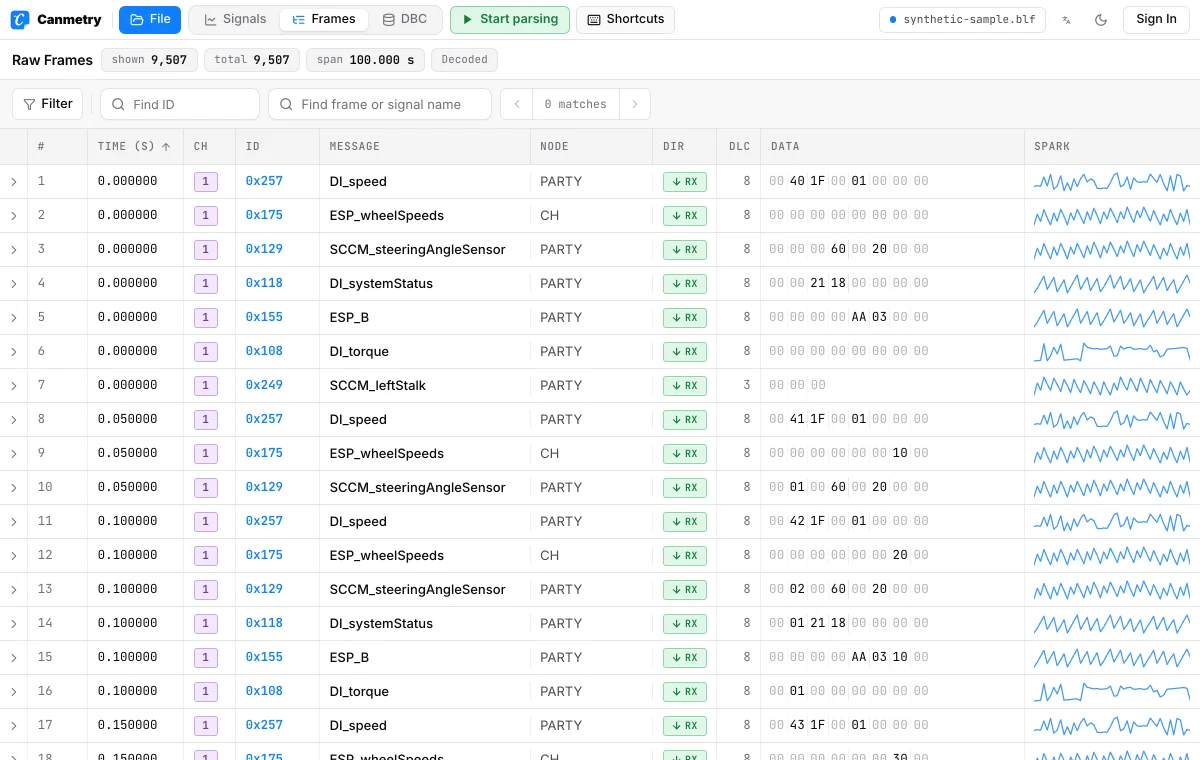
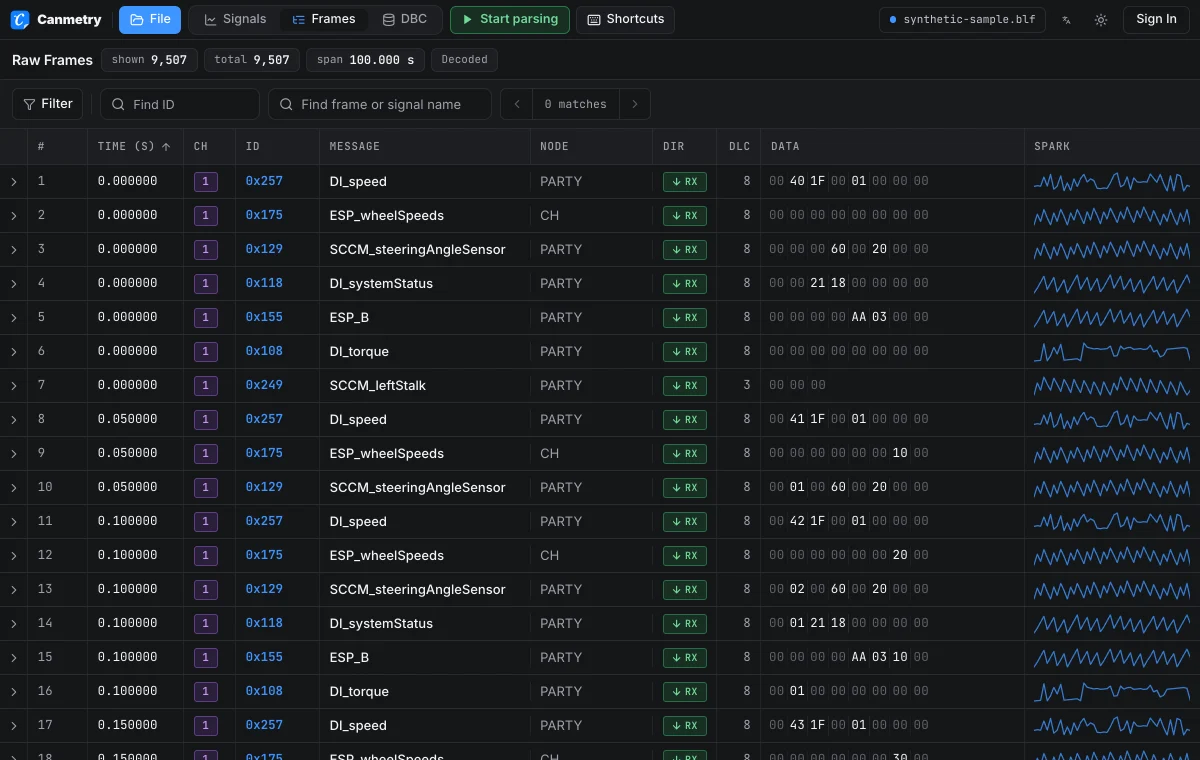
Inspect raw frames
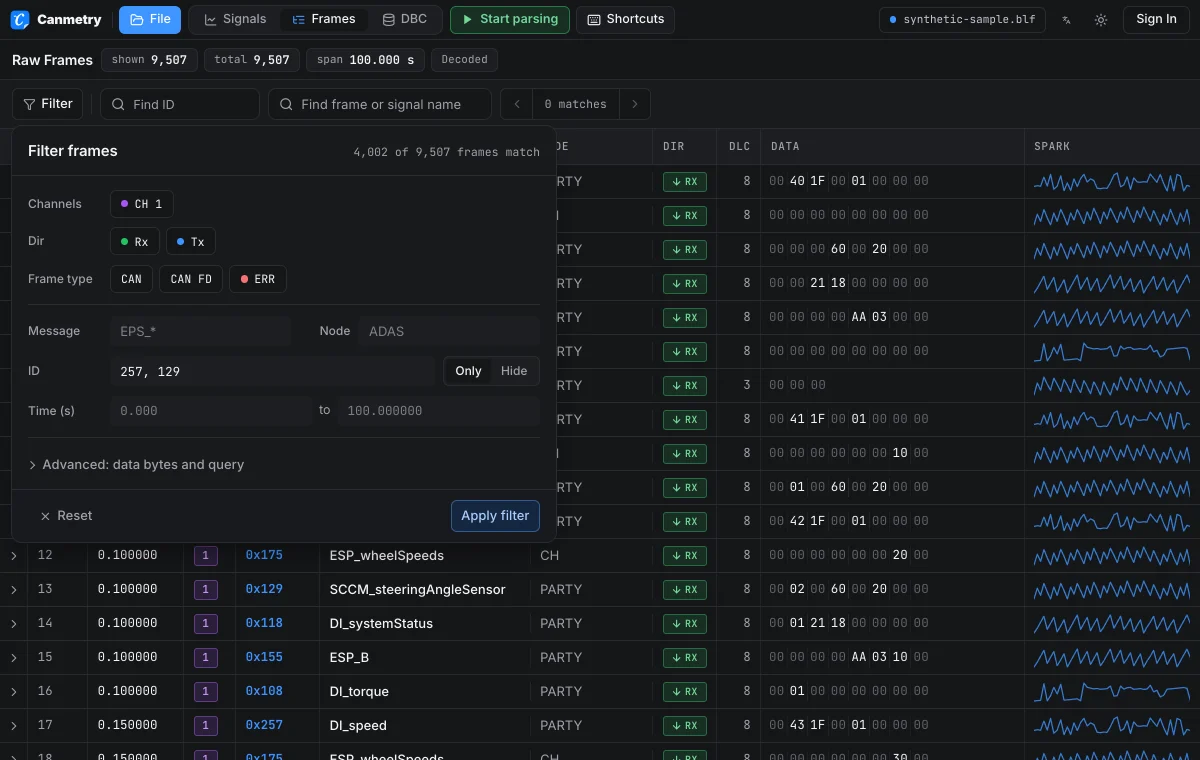
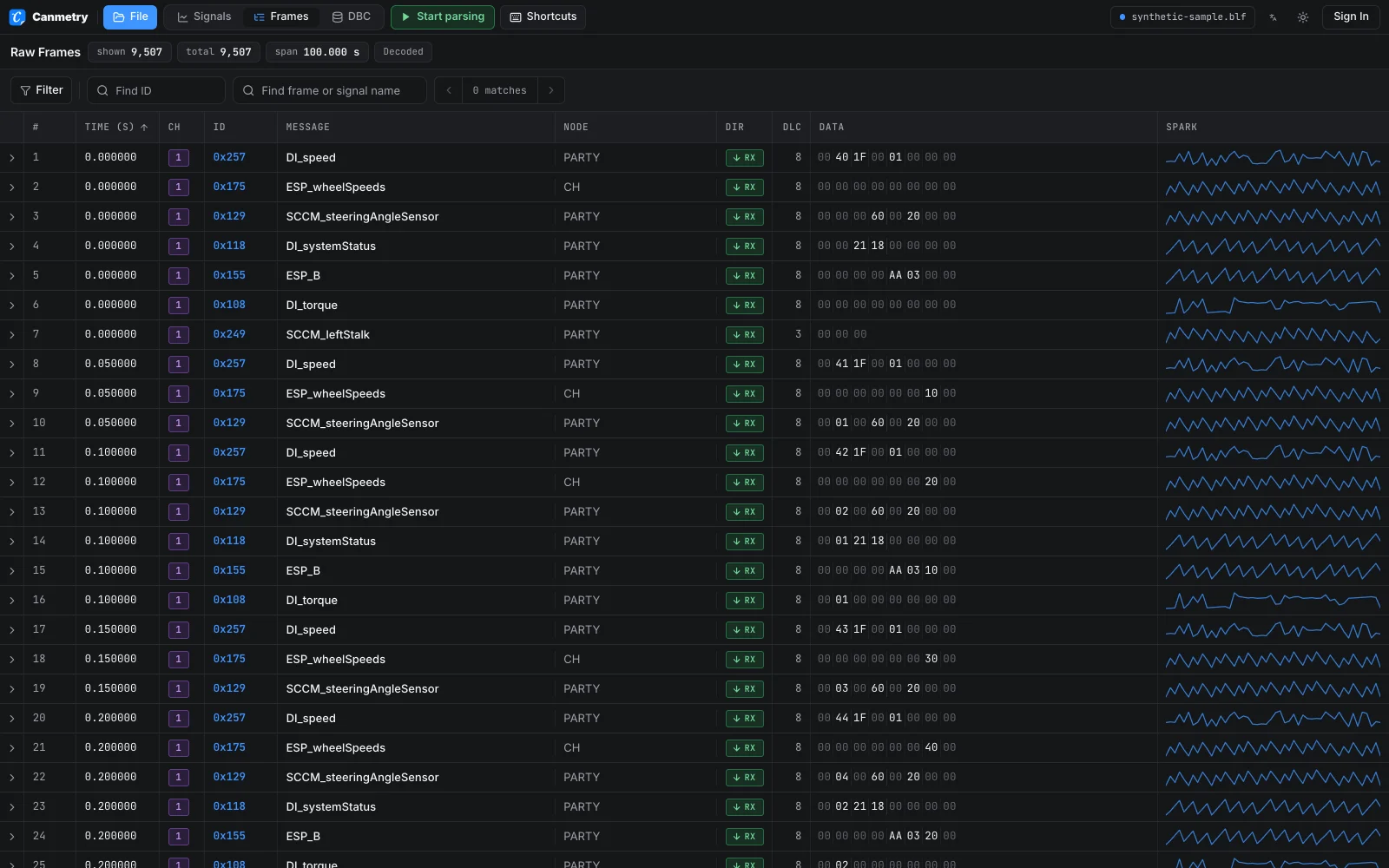
Review timestamps, CAN channels, frame IDs and payload bytes without a DBC. This helps confirm that the event and message you need were recorded.
Open a recorded .mf4 CAN bus log in your browser to inspect frames, channels, IDs and payload bytes. Add a matching DBC when you need named signals and plots. Local opening does not upload the file.
Drop an MF4 CAN log here
Choose a .mf4 CAN bus log up to 150 MiB. The sample demonstrates the workbench with a synthetic log; it is not an MF4 compatibility test.
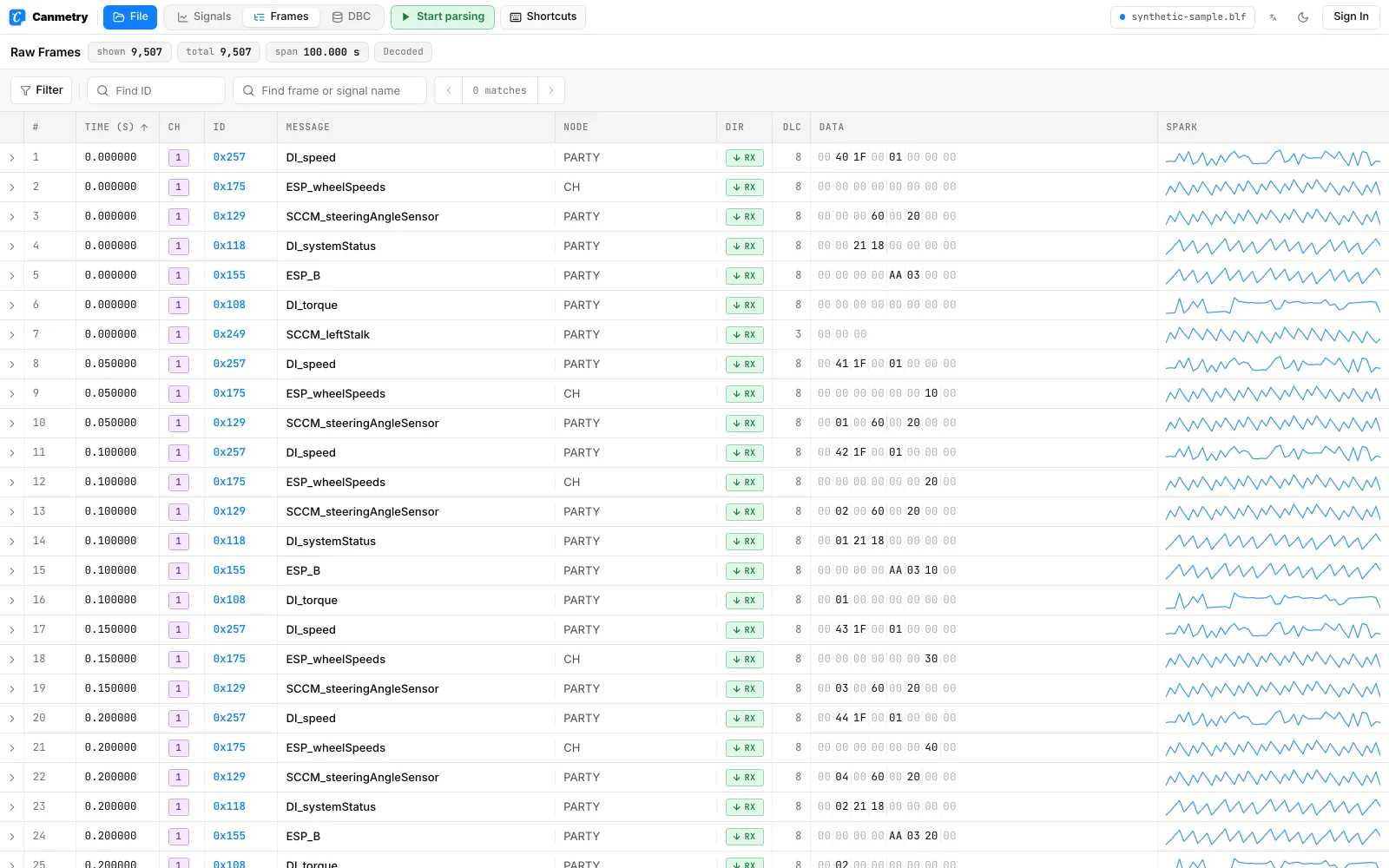
Use raw frames to verify the recording first. Decode signals only after checking the DBC and channel mapping.
Review timestamps, CAN channels, frame IDs and payload bytes without a DBC. This helps confirm that the event and message you need were recorded.
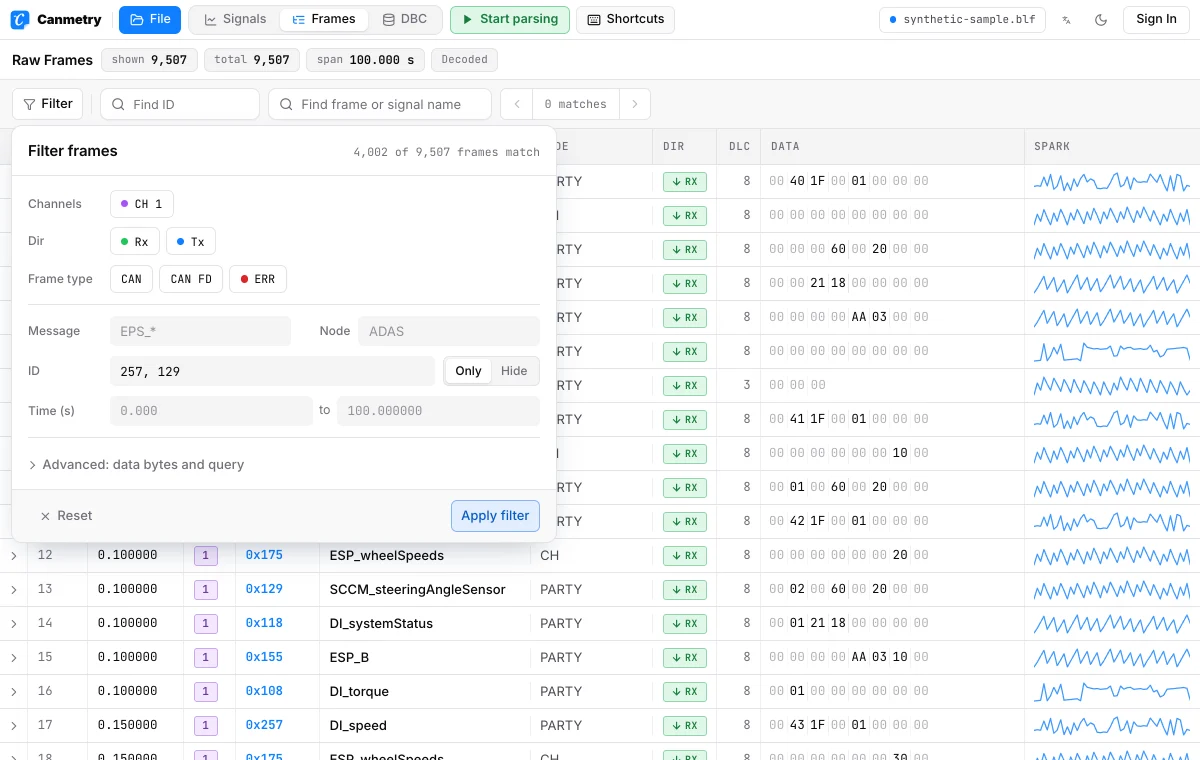
Filter the trace by channel and frame ID to isolate the traffic around an event before decoding it.
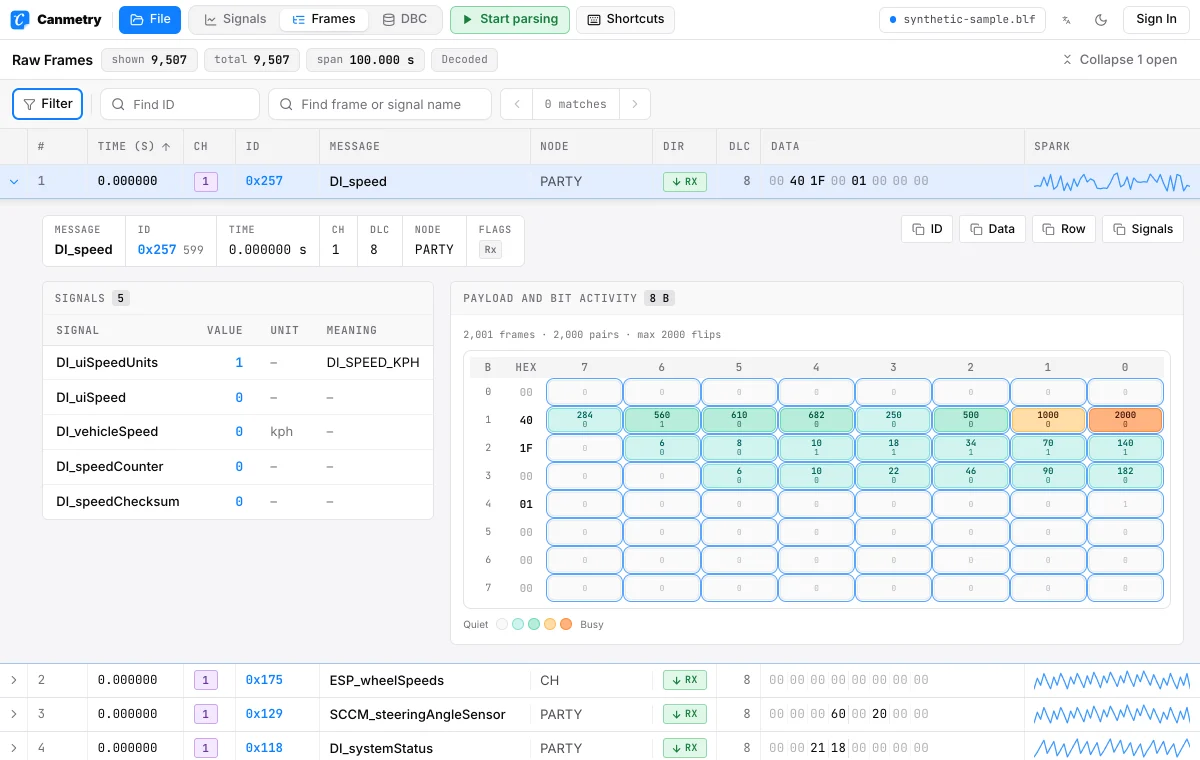
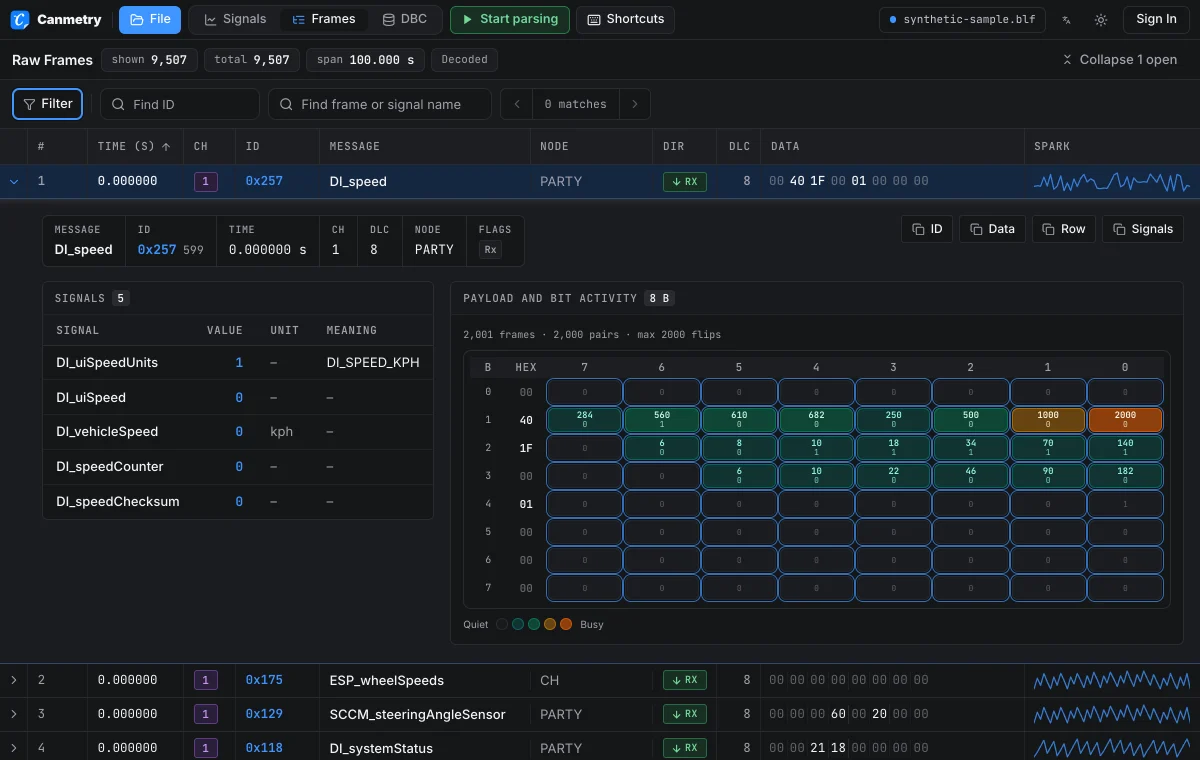
Open a frame to compare its payload with the DBC definition when a decoded value needs verification.
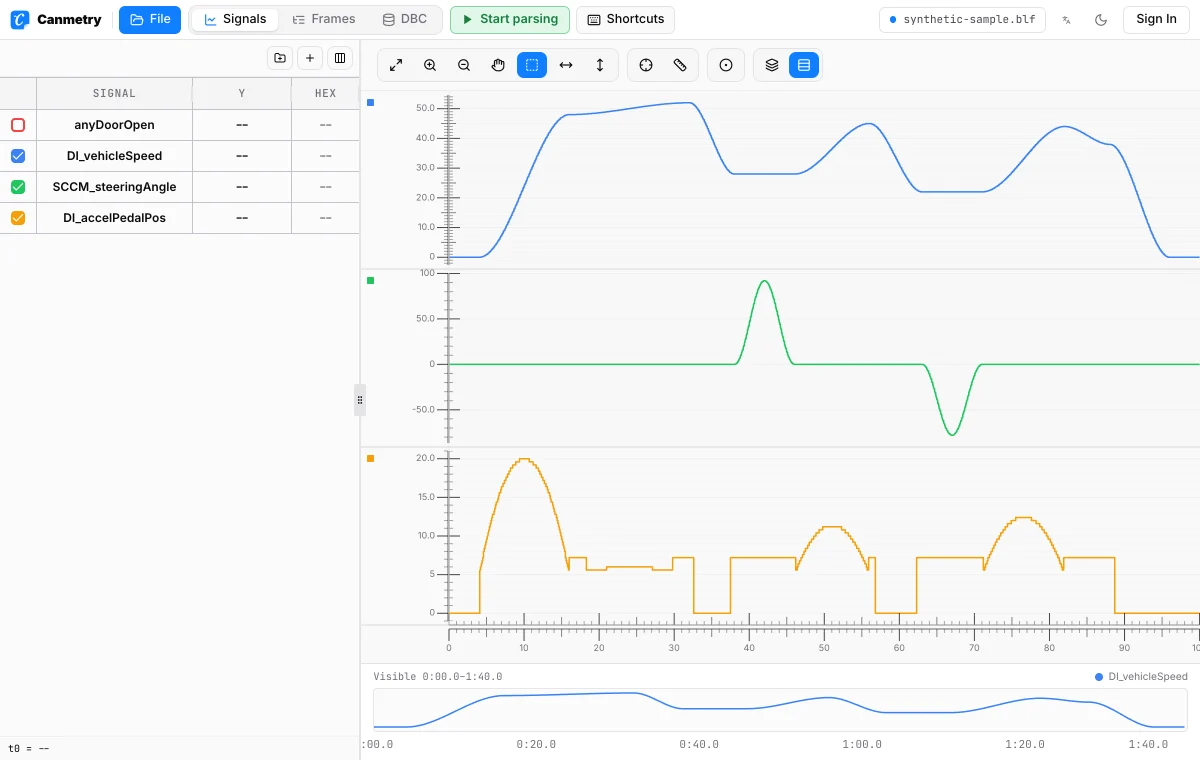
Link the DBC for the recorded network to each channel. Check a known message before trusting physical values or signal plots.
An MF4 file can answer different questions depending on whether you have its DBC and what result you need to take away.
Start in the Frames view to confirm the recording contains the expected CAN channel and message ID. Timestamps and raw payload bytes are useful for checking whether a message appeared near an event, even if the signal definitions are unavailable.
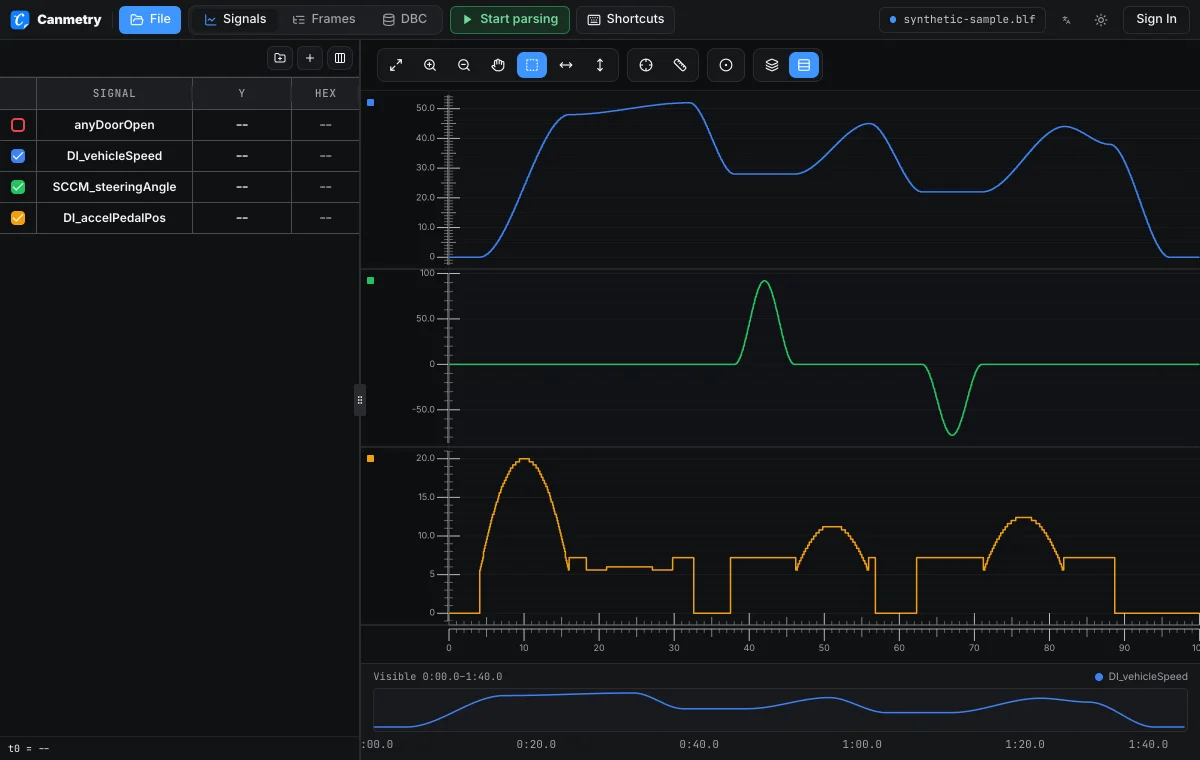
A DBC supplies signal names, bit positions, scaling and units; the MF4 alone does not supply those definitions. Map the DBC to the channel it describes. A wrong DBC revision can produce missing signals or plausible but incorrect values, so verify one known frame before using a plot.
The workbench can export decoded signal CSV for inspection in a spreadsheet or script. If the next step expects a .mat file or a separate conversion run, use the dedicated MF4 converter. Decoded exports are interpretations of the source recording; keep the original MF4 for later checks.
Need a MAT or CSV file? Use the MF4 converter.Start with the original recording, check its CAN frames, then add a DBC only for the signals you need.
Choose a .mf4 file from your computer. The browser reads supported CAN bus logging groups and opens the analysis workbench; no account is needed for this local step.
Check the detected channels and frame IDs first. To decode signals, load the DBC from the recorded vehicle and software version, then map it to the corresponding CAN channel.
Inspect the raw frame beside a decoded value. If the signal looks wrong, check the DBC version, message ID, byte order and channel mapping before exporting results.
MF4 is a container format. This viewer reads supported CAN bus logging structures rather than every measurement layout stored in an MDF4 file.
The reader looks for CAN_DataFrame, CAN_RemoteFrame and CAN_ErrorFrame bus logging groups. Supported records expose frame time, channel, ID and data; CAN FD payloads can be inspected when present.
An unfinalized MF4, a data block or compression method this reader does not implement, or a file with no recognized CAN bus frames can fail to open. A measurement-only MF4 is not converted into CAN frames.
The local workbench accepts one log up to 150 MiB. A file below that limit can still need more memory after decompression, so performance depends on the recording and your device.
Check the earliest failing step before changing the DBC or exporting data.
Confirm that the file is a finalized MDF4 recording with CAN bus logging groups, rather than a measurement-only file. A parser error about a block or compression method means this browser reader cannot handle that layout; renaming the extension will not change the contents.
Look at a raw frame ID and its channel, then check whether the mapped DBC defines that ID. A DBC from another vehicle network or software revision may leave frames visible but produce no signal names.
Compare the raw payload with the DBC's bit position, byte order, signedness, factor and offset. Also confirm that the DBC is mapped to the channel that recorded the frame before trusting the graph.
The local viewing action and optional account features have different data flows.
Choosing or dropping a local MF4 reads and decodes it in your browser. Opening it this way does not upload the file bytes for server-side parsing.
Saving a cloud project sends analysis settings and metadata. Uploading a log to cloud storage is a separate selection. When you use the AI assistant, your message and limited analysis context go to the service and AI provider.
Read the data-flow details.No. You can inspect supported raw CAN frames without a DBC. A matching DBC is needed to decode named physical signals.
Opening the file locally parses it in your browser without uploading its bytes. Cloud file upload and the AI assistant are separate optional actions.
No. This viewer targets CAN bus logging groups. Other MDF4 measurement layouts, unfinalized files, or unsupported compression and data blocks may not open.
Yes. The workbench exports decoded signal CSV. For separate MAT or CSV output, use the MF4 to MAT/CSV converter and map a matching DBC to the recorded channels.
Raw CAN frames can appear without named signals. Check that the DBC matches the recorded network and software version, that it is mapped to the correct channel, and that it defines the frame IDs in the file.
The local workbench accepts an MF4 up to 150 MiB per file. Decoding and decompression also use your device's memory. For a larger capture, split or process it with another workflow before trying to open it here.
The next job after this one, each on its own page.